Vision
Show Chalie an image and ask questions about what it sees.
See what Chalie sees
Upload any image and Chalie can describe it, extract text, answer specific questions about it, or use what it sees to help with a task. Photos, screenshots, diagrams, scanned documents — anything visual.
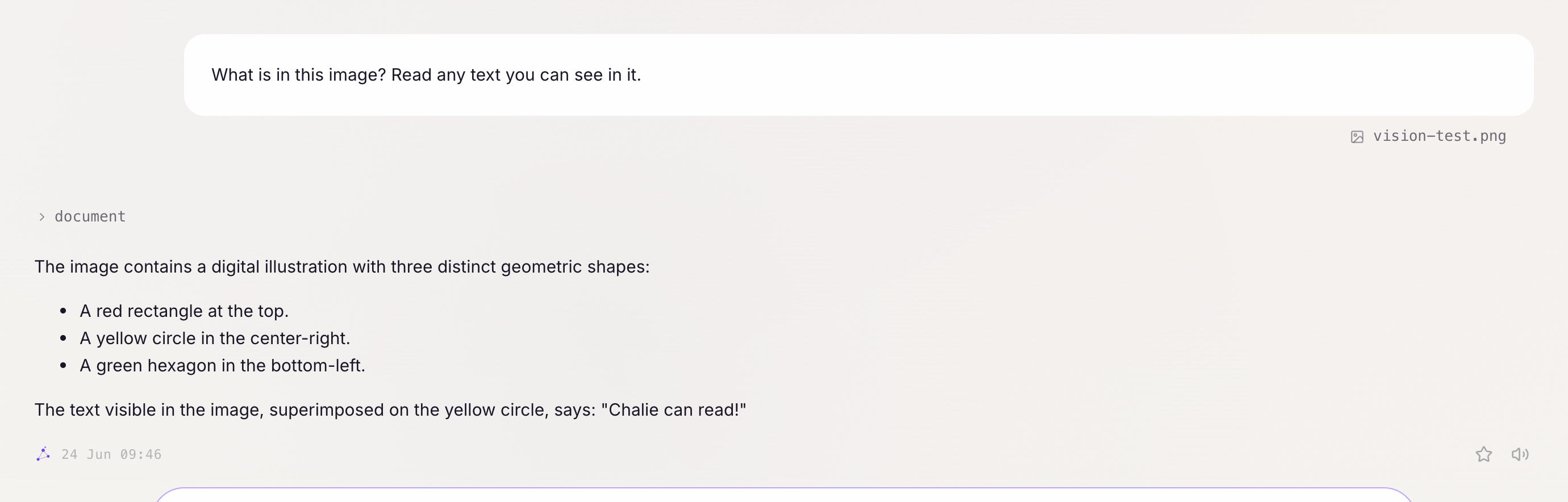
Getting started:
- “What does this screenshot show?”
- “Is there any useful text in this image?”
- “Describe what’s in this photo.”
Reading images
Ask Chalie to look at an image the same way you’d ask a person:
- “What’s written on this whiteboard?”
- “What does the graph in this chart show?”
- “Can you read the text in this screenshot?”
- “What products are visible on this shelf?”
Chalie describes images in detail — subjects, layout, text, setting, colours, and more.
Answering questions from images
Point Chalie at an image and ask something specific:
- “Here’s a photo of my fridge — what can I make for dinner?”
- “This is a diagram of a network setup — does anything look misconfigured?”
- “Can you read this handwritten note and type it out for me?”
- “What does this error message say?”
Images uploaded via the interface
When you upload an image through the chat interface, Chalie reads it automatically. The image is saved to your documents folder and is available for follow-up questions in any later conversation.
See the Documents guide for more on how uploaded files are stored.
How it works
Chalie sends the image to your configured vision provider for full visual analysis. If no vision provider is configured, Chalie falls back to OCR (optical character recognition), which extracts printed text but cannot describe visual content. The best experience requires a vision-capable LLM provider set up in your settings.