Connect to MCP Servers
Give Chalie new abilities by connecting it to external MCP servers — their tools become Chalie's tools.
Extend Chalie with external tools
Chalie can connect outward to remote MCP servers and use their tools as if they were its own. Point Chalie at a server, and every tool that server exposes becomes available in your conversations — automatically discovered, schema-aware, and covered by the same policy controls as Chalie’s built-in abilities.
This is the reverse direction of Agent-to-Agent, where other tools talk to Chalie. Here, Chalie reaches out to external servers and borrows their capabilities.
What you can connect
Any MCP server reachable over Streamable HTTP. For example:
- A task tracker so Chalie can create and update tickets
- A home automation server to control devices Chalie doesn’t natively support
- An internal company tool that exposes its own MCP endpoint
- Another agent that publishes its abilities over MCP
Once connected, you never call those tools directly — you just ask Chalie. It picks the right remote tool for what you need and uses it.
Add a server from the Brain dashboard
Open the Brain dashboard and go to the MCP tab. It has two sections: Inbound (the server that lets other tools talk to Chalie) and Outbound (the connections Chalie makes to external servers). You want Outbound.
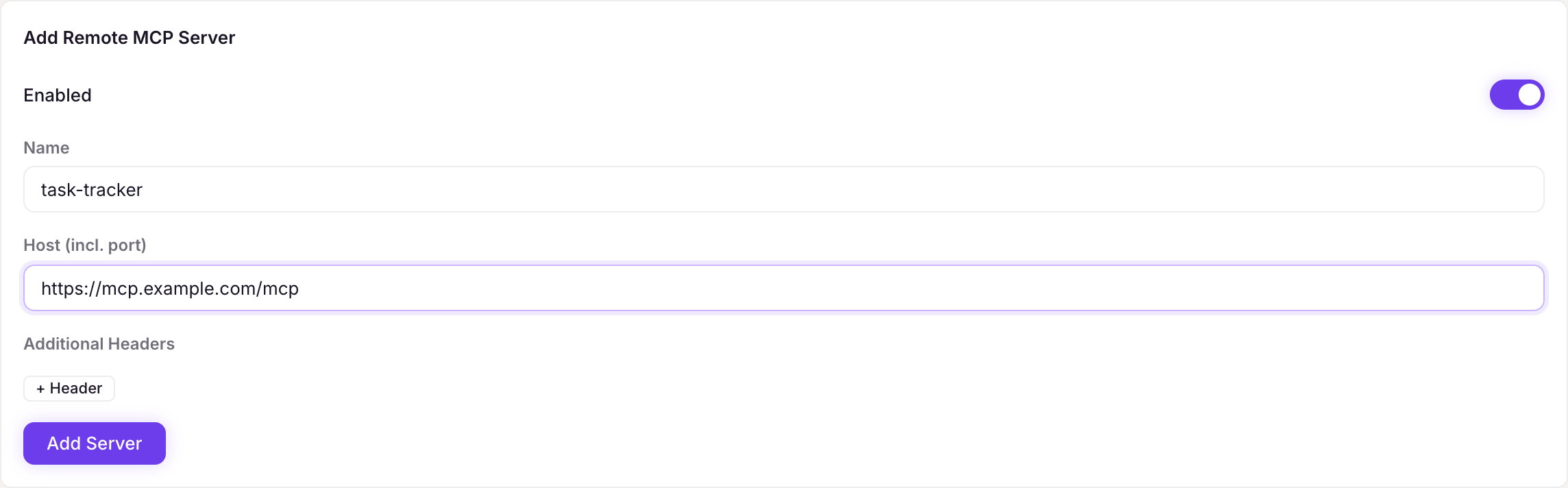
In the Add Remote MCP Server form, fill in:
| Field | What to enter |
|---|---|
| Enabled | Leave on to use the server immediately |
| Name | A short label, e.g. task-tracker |
| Host (incl. port) | The full server URL, e.g. https://mcp.example.com/mcp |
| Additional Headers | Optional. Add any headers the server needs — most commonly an Authorization header. Click + Header for each key/value pair |
Click Add Server. Chalie connects immediately, pulls in the tool list, and the new connection appears as a card.
Authentication
If a server requires a token, add it as a header. Click + Header, set the name to Authorization and the value to Bearer your-token-here. You can add as many headers as the server needs.
Managing a connection
Each server card shows whether it’s connected or offline, and whether it’s enabled or disabled, along with action buttons:
| Button | What it does |
|---|---|
| Edit | Change the name, host, or headers |
| Test | Ping the server now and re-sync its tools |
| Enable / Disable | Toggle the connection. Disabling keeps the connection but hides its tools |
| Delete | Remove the connection and all of its tools |
Chalie also re-checks every enabled server in the background, so a server that comes back online is picked up without you doing anything.
Add a server by asking Chalie
You don’t have to open the Brain dashboard. Just tell Chalie in conversation:
“Connect to the MCP server at
https://mcp.example.com/mcpand call it task-tracker.”
Chalie sets up the connection and syncs the tools on the spot. You can also manage connections conversationally:
- “List all connected MCP servers.”
- “Enable the task-tracker MCP server.”
- “Disable the weather MCP server.”
- “What remote tools can you access through MCP?”
How Chalie uses the tools
After you add a server, its tools are folded into the pool Chalie searches when deciding how to help. You never name the tools yourself — Chalie finds the right one based on what you ask. Once a task-tracker server is connected, for example, “open a ticket for the login bug” reaches for that server’s create-ticket tool on its own.
Because remote tools can take real actions, they’re subject to Chalie’s policy controls just like every built-in ability. By default, a remote MCP tool asks for your confirmation before it runs, so nothing happens behind your back. You can adjust this per tool in the Policy Manager.
Troubleshooting
| Problem | Fix |
|---|---|
| Shows offline | Check the server is running and reachable from Chalie’s machine. Use Test to retry |
| Tools never appear | The server connected but exposed no tools, or the sync failed — hit Test and check whether it’s connected |
| Authentication errors | Confirm the Authorization header value is correct, including the Bearer prefix |
| Wrong host | Make sure the URL includes the port and the full path the server expects, e.g. ending in /mcp |