Provider Setup
Connect Chalie to an LLM provider — Ollama, Anthropic, OpenAI, Gemini, OpenRouter, or any OpenAI-compatible service.
Choosing a provider
Chalie needs an LLM (large language model) to think with. You pick the provider — Chalie handles the connection. Your options fall into two categories:
- Local — run a model on your own hardware using Ollama. Free, private, no internet required after setup. Best for privacy-focused setups or when you have a capable GPU.
- Cloud — connect to Anthropic, OpenAI, Google Gemini, OpenRouter, or any OpenAI-compatible API. Generally higher quality on most tasks, but requires an API key and internet connection.
You can add multiple providers and switch between them at any time without losing your data.
How to add a provider
Adding a provider takes about a minute — pick your provider, paste a key if it needs one, and choose a model. Chalie fills in the connection details for you.
- Open the Brain dashboard (brain icon in the top-right corner)
- Select Providers in the Brain sidebar
- Click Add Provider
1. Choose your provider
Chalie shows a grid of popular providers — Ollama for local models, the major cloud APIs (Anthropic, OpenAI, Google Gemini), and a wide range of OpenAI-compatible services like DeepSeek, OpenRouter, Groq, and Mistral. Click the tile for the service you want to use.
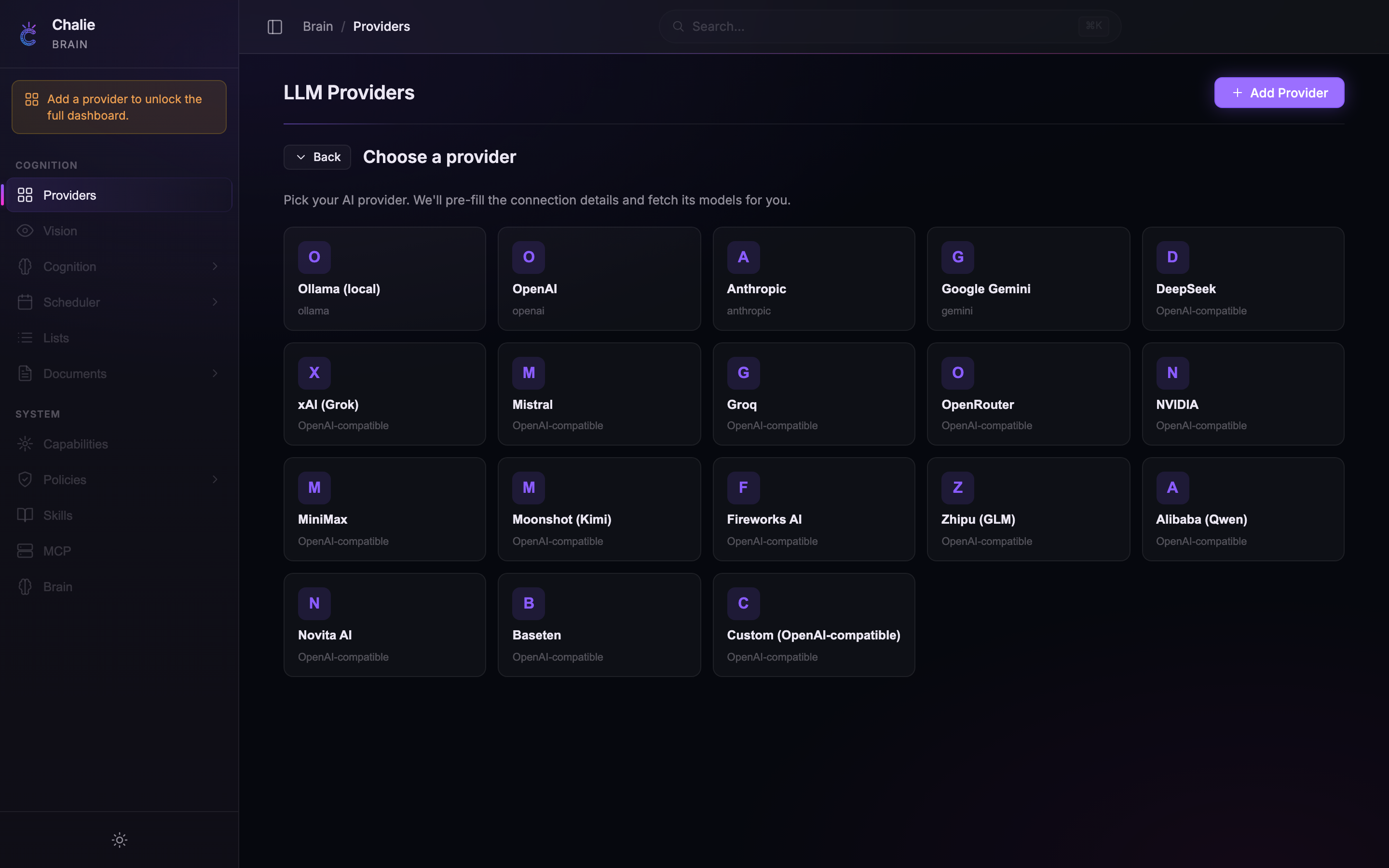
If your provider isn’t in the grid, pick Custom (OpenAI-compatible) at the end and enter the details yourself.
2. Add your credentials
Picking a tile opens the setup form with the connection details already filled in. You only ever supply what’s genuinely yours:
- The Host / Base URL is pre-filled for you — you only touch it for Ollama (to point at a different machine) or Custom.
- An API Key field appears only when the provider needs one. Local Ollama needs no key, so that field never shows.
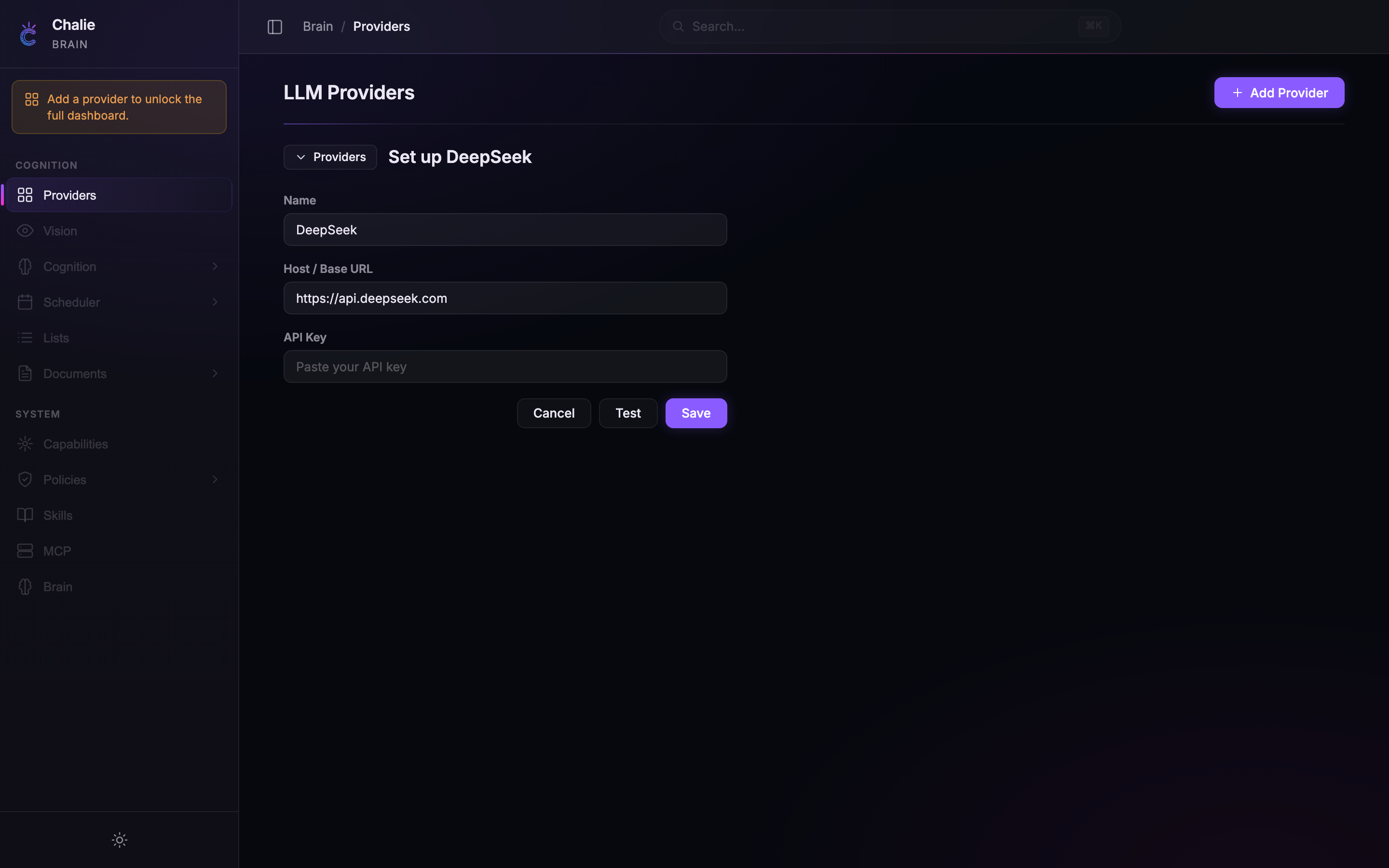
Paste your API key (if asked), and Chalie fetches the provider’s live model list in the background.
3. Pick a model and save
- Once your credentials are complete, the Model dropdown fills itself with the models the provider actually offers — pick one from the list rather than typing an ID, so it always matches what’s available.
- Optionally click Test to confirm the connection — Chalie reaches the provider and reports back.
- Click Save.
Once saved, Chalie will use your new provider immediately. The recommended models in the tables below are the ones to look for in that dropdown.
Ollama (local)
Run models entirely on your machine. No API key, no cloud, no cost.
Prerequisites
Assumes you already have Ollama running with a model pulled.
Configuration
| Field | Value |
|---|---|
| Provider tile | Ollama (local) |
| Host | http://localhost:11434 (pre-filled — the default Ollama address) |
| Model | gemma4:31b (recommended) |
No API key is needed for local Ollama.
Remote Ollama
If Ollama runs on a different machine on your network, change the Host field to point to that machine’s address (e.g. http://192.168.1.50:11434). Make sure the Ollama server is configured to accept remote connections by setting OLLAMA_HOST=0.0.0.0 on the host machine.
Anthropic (Claude)
Connect to Claude models from Anthropic — strong at writing, analysis, and following complex instructions.
Get your API key
- Create an account at console.anthropic.com
- Go to API Keys in the dashboard
- Click Create Key and copy it
Configuration
| Field | Value |
|---|---|
| Provider tile | Anthropic |
| API Key | Your Anthropic API key (starts with sk-ant-) |
| Model | claude-opus-4-6 (recommended) |
Available models
| Model | Speed | Quality | Cost |
|---|---|---|---|
claude-haiku-4-5 |
Fastest | Good | Lowest |
claude-sonnet-4-6 |
Fast | Very good | Medium |
claude-opus-4-6 |
Moderate | Excellent | Higher |
claude-opus-4-7 |
Slower | Best | Highest |
OpenAI (GPT)
Connect to GPT models from OpenAI.
Get your API key
- Create an account at platform.openai.com
- Go to API Keys in the sidebar
- Click Create new secret key and copy it
Configuration
| Field | Value |
|---|---|
| Provider tile | OpenAI |
| API Key | Your OpenAI API key (starts with sk-) |
| Model | gpt-5.5 (recommended) |
Available models
| Model | Speed | Quality | Cost |
|---|---|---|---|
gpt-5.4-nano |
Fastest | Good | Lowest |
gpt-5.4-mini |
Fast | Very good | Low |
gpt-5.4 |
Fast | Excellent | Medium |
gpt-5.5 |
Moderate | Best | Higher |
Google Gemini
Connect to Google’s Gemini models. Generous free tier available.
Get your API key
- Go to aistudio.google.com
- Click Get API key in the sidebar
- Create a key in a new or existing Google Cloud project and copy it
Configuration
| Field | Value |
|---|---|
| Provider tile | Google Gemini |
| API Key | Your Gemini API key |
| Model | gemini-3.5-flash (recommended) |
Available models
| Model | Speed | Quality | Cost |
|---|---|---|---|
gemini-3.1-flash-lite |
Fastest | Good | Free tier available |
gemini-2.5-flash |
Fast | Very good | Free tier available |
gemini-3.5-flash |
Fast | Excellent | Free tier available |
gemini-2.5-pro |
Slower | Best reasoning | Paid |
Gemini’s free tier is generous and a great way to try Chalie at zero cost.
OpenRouter
Access hundreds of models from a single API key. OpenRouter sits between Chalie and providers like Meta (Llama), Mistral, Anthropic, OpenAI, and dozens more — you pick the model, OpenRouter handles the routing.
Get your API key
- Create an account at openrouter.ai
- Go to Keys in the dashboard
- Click Create Key and copy it
Configuration
| Field | Value |
|---|---|
| Provider tile | OpenRouter |
| Host | https://openrouter.ai/api/v1 (pre-filled) |
| API Key | Your OpenRouter API key |
| Model | deepseek/deepseek-v4-pro (recommended) |
Popular model IDs
| Model | Provider | Notes |
|---|---|---|
deepseek/deepseek-v4-pro |
DeepSeek | Top-tier reasoning, 1M context, competitive pricing |
deepseek/deepseek-v4-flash |
DeepSeek | Fast and cheap, also available free |
meta-llama/llama-4-maverick |
Meta | 400B MoE, 1M context, open-weight |
google/gemini-3.5-flash |
Near-Pro quality at Flash cost | |
anthropic/claude-opus-4-6 |
Anthropic | Claude via OpenRouter |
openai/gpt-5.5 |
OpenAI | GPT-5.5 via OpenRouter |
Browse the full catalogue at openrouter.ai/models and copy the model ID directly into Chalie.
Why OpenRouter?
- One key, many models — try different models without managing separate accounts
- Fallback routing — if a model is down, OpenRouter can switch to an alternative
- Pay-as-you-go — fund one account instead of several
Mistral AI
Connect to Mistral’s models using their OpenAI-compatible API.
Get your API key
- Create an account at console.mistral.ai
- Go to API Keys
- Create a new key and copy it
Configuration
| Field | Value |
|---|---|
| Provider tile | Mistral |
| Host | https://api.mistral.ai/v1 (pre-filled) |
| API Key | Your Mistral API key |
| Model | mistral-medium-3-5 (recommended) |
Available models
| Model | Speed | Quality |
|---|---|---|
mistral-small-2603 |
Fastest | Good |
mistral-large-2512 |
Fast | Very good, open-weight |
mistral-medium-3-5 |
Moderate | Best — 128B dense, 256K context |
DeepSeek
DeepSeek offers high-quality reasoning models at competitive prices through an OpenAI-compatible API.
Get your API key
- Create an account at platform.deepseek.com
- Go to API Keys in the sidebar
- Create a new key and copy it
Configuration
| Field | Value |
|---|---|
| Provider tile | DeepSeek |
| Host | https://api.deepseek.com (pre-filled) |
| API Key | Your DeepSeek API key |
| Model | deepseek-v4-pro (recommended) |
Available models
| Model | Best for |
|---|---|
deepseek-v4-flash |
Fast and efficient, everyday use |
deepseek-v4-pro |
Top-tier reasoning, 1M context |
deepseek-r1-0528 |
Dedicated reasoning model |
Groq
Groq runs open-weight models on custom LPU hardware, delivering extremely fast inference. Free tier available. Groq is not a model creator — it hosts models from Meta (Llama), Mistral, and others at high speed.
Get your API key
- Create an account at console.groq.com
- Go to API Keys
- Create a new key and copy it
Configuration
| Field | Value |
|---|---|
| Provider tile | Groq |
| Host | https://api.groq.com/openai/v1 (pre-filled) |
| API Key | Your Groq API key |
| Model | llama-4-maverick (recommended) |
Groq’s model catalogue changes as new open-weight models are released. Check console.groq.com/docs/models for the current list.
Other OpenAI-compatible providers
Any service that exposes an OpenAI-compatible chat completions endpoint works with Chalie. This includes providers like Together AI, Fireworks AI, Perplexity, and self-hosted solutions like vLLM or LocalAI. Pick the Custom (OpenAI-compatible) tile at the end of the provider grid and fill in the details yourself.
Configuration
| Field | Value |
|---|---|
| Provider tile | Custom (OpenAI-compatible) |
| Host | The provider’s base URL (e.g. https://api.together.xyz/v1) |
| API Key | Your API key for the provider |
| Model | Pick from the list Chalie fetches once your host and key are set |
Examples
| Provider | Host | Example model |
|---|---|---|
| Together AI | https://api.together.xyz/v1 |
meta-llama/Llama-4-Maverick-17B-128E-Instruct-Turbo |
| Fireworks AI | https://api.fireworks.ai/inference/v1 |
accounts/fireworks/models/llama4-maverick-instruct-basic |
| Perplexity | https://api.perplexity.ai |
sonar-pro |
| vLLM (self-hosted) | http://your-server:8000/v1 |
Your loaded model name |
| LocalAI | http://localhost:8080/v1 |
Your loaded model name |
The key requirement is that the service implements the /chat/completions endpoint in OpenAI format. If it does, Chalie will work with it.
Switching providers
You can change your active provider at any time:
- Open the Brain dashboard
- Select Providers in the Brain sidebar
- Click on a different provider to make it active
All your conversations, memories, and settings carry over — only the model powering Chalie’s responses changes.
Troubleshooting
- “API key invalid” — double-check you copied the full key including any prefix (e.g.
sk-ant-for Anthropic) - “Connection refused” — for Ollama, make sure the server is running (
ollama serve); for cloud providers, check your internet connection - Model dropdown is empty — Chalie loads the model list automatically once your Host (Ollama / Custom) and API Key are filled in; if it stays empty, your connection details are wrong or the provider is unreachable. Use Test to confirm Chalie can reach the provider.
- Slow responses — local models depend on your hardware; try a smaller model or switch to a cloud provider for faster results
- “Rate limit exceeded” — you’ve hit the provider’s usage cap; wait a moment and try again, or upgrade your plan